

A Comprehensive Guide: How to Launch Applications on Cloudways
Step-by-step instructions for deploying applications, from WordPress to custom applications, on Cloudways.
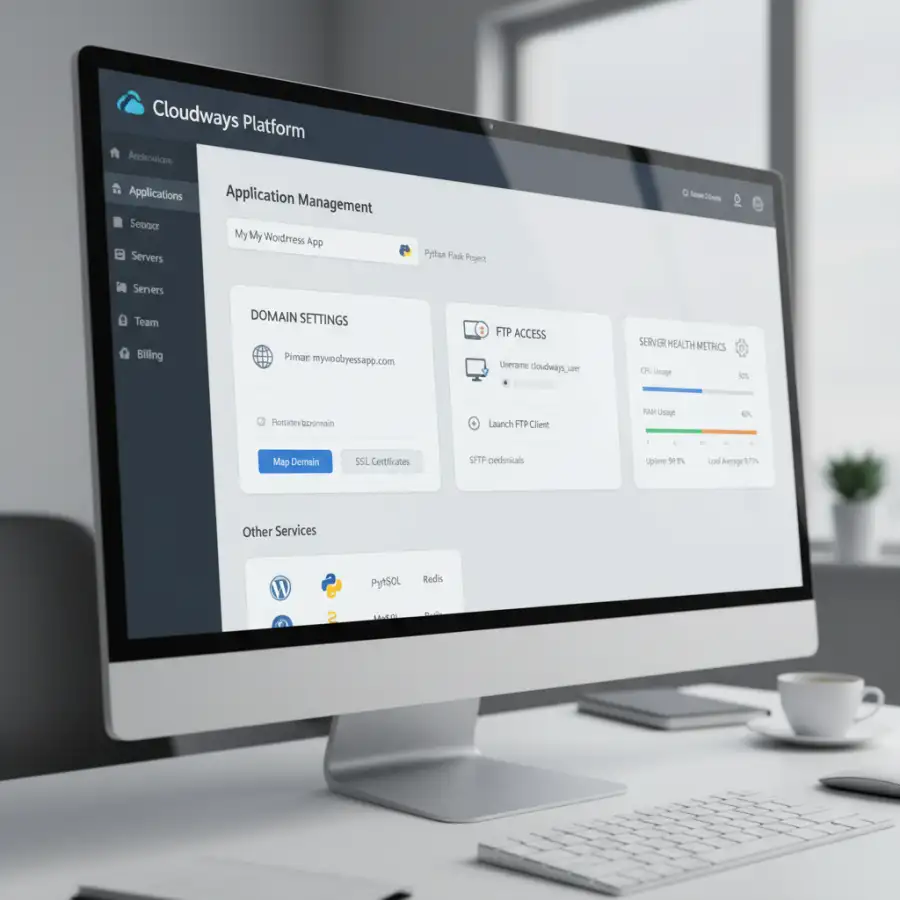
Do you want to move your application to the cloud? Cloudways has a streamlined platform. Getting started can seem difficult. This guide simplifies the process. It makes launching and managing your apps easy.
Are you a seasoned developer or just starting? Cloudways gives you the tools and infrastructure to deploy your applications efficiently. Learn how to configure your server, install applications, and manage your cloud environment.
From WordPress to custom PHP applications, this guide gives you the knowledge to launch and maintain your applications with confidence. Use the power of Cloudways. See how easy it can be to deploy apps in the cloud.
Cloudways simplifies cloud hosting. It lets users launch and manage many applications without deep technical knowledge. This guide will show you how to launch applications on Cloudways. This includes setting up your server, deploying your application, and managing essential aspects like domain configuration and security. We will cover everything from launching a WordPress site to deploying more complex applications. We will provide detailed instructions and tips to help you launch smoothly. The goal is to help you use Cloudways effectively for your application hosting needs. This is true no matter your technical background.
Quick navigation
Choosing and Setting Up Your Cloudways Server
You need to set up your server before launching any application on Cloudways. Cloudways offers cloud infrastructure providers like Amazon Web Services (AWS), Google Cloud, DigitalOcean, Vultr, and Linode. Choosing the right provider depends on your needs, budget, and location. Each provider has different performance and pricing. Consider factors like server location to lower latency for your users. Also, consider the expected traffic to choose the right server size and resources.
The setup involves selecting your cloud provider, choosing your server size (RAM, storage, and CPU), and selecting the server location. Cloudways will provision your server after you make these choices. This takes a few minutes. During this time, the platform sets up all necessary components. These include the operating system (typically Ubuntu), the web server (like Nginx or Apache), PHP, and other required software. You will get access to the Cloudways dashboard after the server is provisioned. You can manage your applications and server settings there.
Launching Your First Application
Launching an application on Cloudways is designed to be easy. The platform supports many applications, including WordPress, Magento, Laravel, and custom PHP applications. You can deploy a pre-configured application or upload your code. Select the application type, choose your server, and provide any required configuration details. Cloudways simplifies this with its one-click application installation. It handles the backend complexities so you can focus on your application’s functionality.
For custom applications, upload your code via FTP or Git. Configure the necessary database settings through the Cloudways interface. Cloudways provides a temporary URL after the application is deployed. You can then configure your domain name to point to your new application. Update your DNS settings to direct traffic to your Cloudways server. Cloudways gives you tools to manage these DNS settings. The platform's ease of use makes launching and managing applications manageable, even for those new to cloud hosting.
WordPress Application Launch
WordPress is a popular content management system (CMS). Cloudways makes it easy to deploy. Select WordPress from the application catalog during server setup to launch a WordPress site. You will be asked to enter your site name, email address, and desired WordPress username and password. Cloudways installs WordPress and essential plugins automatically. This includes a caching plugin to improve performance. The platform also offers features to optimize your WordPress site. These include free SSL certificates and one-click backups.
You can access your WordPress admin dashboard using the credentials you set up after installation. Customize your site with themes, plugins, and content from there. Cloudways provides staging environments. This lets you test changes without affecting your live site. Managing updates is simple. Use one-click options to update WordPress core files, themes, and plugins. Cloudways' tools and features enable a smooth WordPress hosting experience.
Launching Custom PHP Applications
Cloudways is excellent for deploying custom PHP applications. Set up the server. Add a new application and select PHP from the application catalog. Name your application. Then, upload your application files via FTP or Git. Cloudways provides a dedicated FTP account for each application. This makes file transfers secure and straightforward. Configure your database settings. These settings are needed for your PHP application to connect to the database.
Cloudways supports different PHP versions. You can choose the one that suits your application's needs. The platform includes features such as server-side caching, which can improve performance. You can use the Cloudways server monitoring tools to monitor server resource usage. This lets you optimize your application for performance. Cloudways simplifies the management of custom PHP applications. It offers a strong and scalable hosting solution.
Configuring Your Domain and DNS
You need to configure your domain name after your application launches. Point your domain to your Cloudways server. In the Cloudways dashboard, you'll find the public IP address of your server. Log into your domain registrar's account (where you bought your domain) and update the DNS records. Add an A record that points your domain to your server's IP address. Create a CNAME record that points to your domain if you want to use a subdomain (e.g., www.example.com).
Propagation can take up to 48 hours. Cloudways provides options for installing SSL certificates to secure your website after your domain is configured. You can get a free SSL certificate from Let's Encrypt directly from the Cloudways dashboard. Your website will be accessible via HTTPS after the SSL certificate is installed. This improves security and trustworthiness. Cloudways simplifies these processes, guiding you through domain configuration and SSL setup.
FTP Access and File Management
FTP (File Transfer Protocol) access is essential for managing your application's files. Cloudways provides secure FTP access for each application. You can access your application’s files using an FTP client such as FileZilla or Cyberduck. The Cloudways dashboard gives you the FTP credentials. These include the server IP address, username, and password. You can connect to your server with these credentials. Then, you can upload, download, and change your application files.
Cloudways also offers a built-in file manager. You can manage files directly through the dashboard. This is helpful for quick edits and uploads. Use SSH access for more advanced file management tasks. SSH lets you connect to your server securely. You can manage files using command-line tools such as SFTP (Secure File Transfer Protocol). Cloudways offers complete file management options. This makes it easy to manage your application’s files and maintain your server.
What this means for you
You get a simple approach to cloud hosting by using Cloudways. The platform handles server setup, management, and scaling. This lets you focus on your application instead of the technical complexities of cloud infrastructure. You get improved performance through server-side caching and optimized server configurations. The platform’s strong security features, including free SSL certificates and regular backups, help protect your application and data. Cloudways is designed to save time and resources. It gives you a platform that is easy to manage.
Cloudways' approach is great for developers, businesses, and individuals who want a reliable and efficient way to deploy and manage applications in the cloud. Cloudways supports many applications. Its user-friendly interface simplifies the process. It reduces the need for specialized technical skills. This makes cloud hosting accessible to more people. This helps to increase efficiency.
Risks, trade-offs, and blind spots
There are trade-offs to consider, even though Cloudways simplifies cloud hosting. The platform is a managed hosting solution. You have less control over the underlying server configuration compared to unmanaged cloud services. You might find Cloudways limiting if you need customized server settings or specific software configurations. However, the platform is user-friendly. It removes many of the complexities of cloud management.
Another blind spot is the pricing. Cloudways' pricing is based on resource usage. Costs can increase with high traffic or resource-intensive applications. Monitor your server's resource usage regularly to avoid unexpected costs. Consider the potential for vendor lock-in. Migrating applications from Cloudways to another platform can be complex. Carefully weigh these factors against the benefits of managed hosting before deciding.
Main points
- Server Selection and Setup: Cloudways lets you choose from multiple cloud providers (AWS, Google Cloud, DigitalOcean, etc.). This lets you tailor your server setup to your needs.
- Application Deployment: Launching applications is simple. Use one-click installations for platforms like WordPress. Custom PHP applications are supported via FTP or Git.
- WordPress Hosting: Cloudways offers optimized WordPress hosting. It features one-click installations, free SSL certificates, and staging environments for testing.
- Custom Application Deployment: Deploy custom PHP applications using FTP or Git. Configure database settings through the easy-to-use Cloudways interface.
- Domain Configuration: Configure your domain easily. Point your domain to the server's IP address. Easily install SSL certificates for added security.
- File Management: Cloudways offers FTP access and a built-in file manager. Easily upload, download, and change application files.
- Performance: Features such as server-side caching are included. They improve your application's loading speed.
- Scalability and Management: Cloudways offers a scalable, managed hosting solution to help you manage your applications effectively.
Cloudways provides a user-friendly and efficient platform for launching and managing applications in the cloud. You can improve your cloud hosting experience by following the steps in this guide. Use its features to make sure your applications run smoothly and securely. For more information, explore tutorials at Navigating Digital Campus, or explore options at Online School Programs to see similar solutions, and get further clarity by consulting Licensing Myths Exposed.